Attachments can be managed directly within articles, banners, and DPCalendar events. The attachment management interface allows authors and administrators to upload, organize, and maintain files associated with specific content items.
Each attachment is stored in a dedicated folder on the local file system. Folders are automatically organized by context, ensuring that files belonging to different articles, banners, or events remain separated and easy to manage. Attachments can be accessed and managed both from the front-end details view and from the administrator interface.
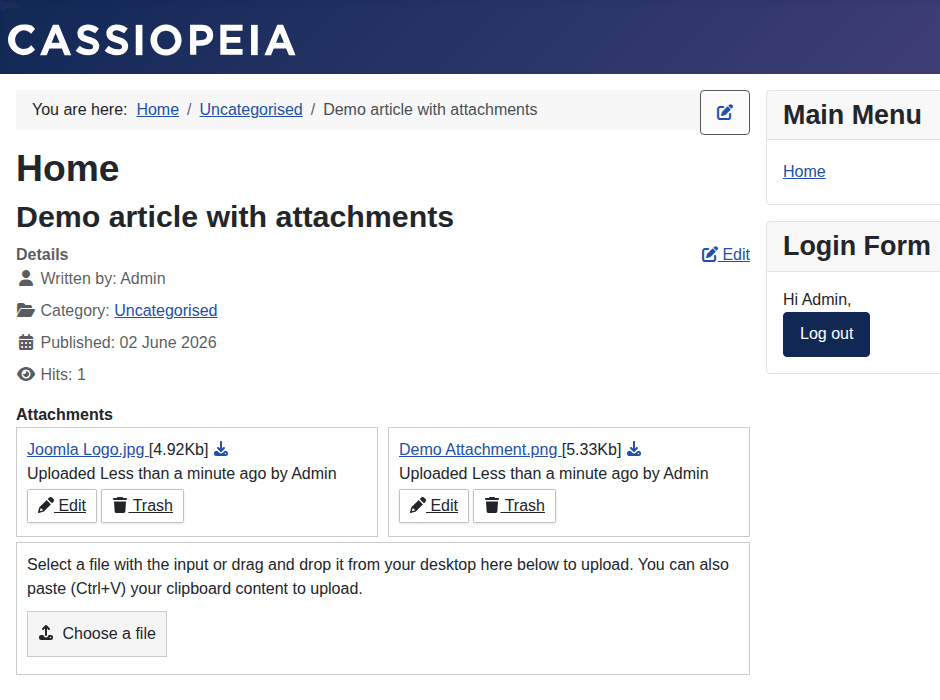
To upload attachments, the user must have edit permissions for the respective article, banner, or DPCalendar event. In addition, the DPAttachments Content Plugin must be enabled.
Once these requirements are met, attachments can be uploaded using any of the following methods:
The upload interface supports a streamlined workflow, allowing users to quickly attach documents, images, and other file types without leaving the current editing context.
Attachments can be added in the following locations:
After an attachment has been uploaded, it becomes immediately available for management and can be referenced, downloaded, or removed according to the user's permissions.
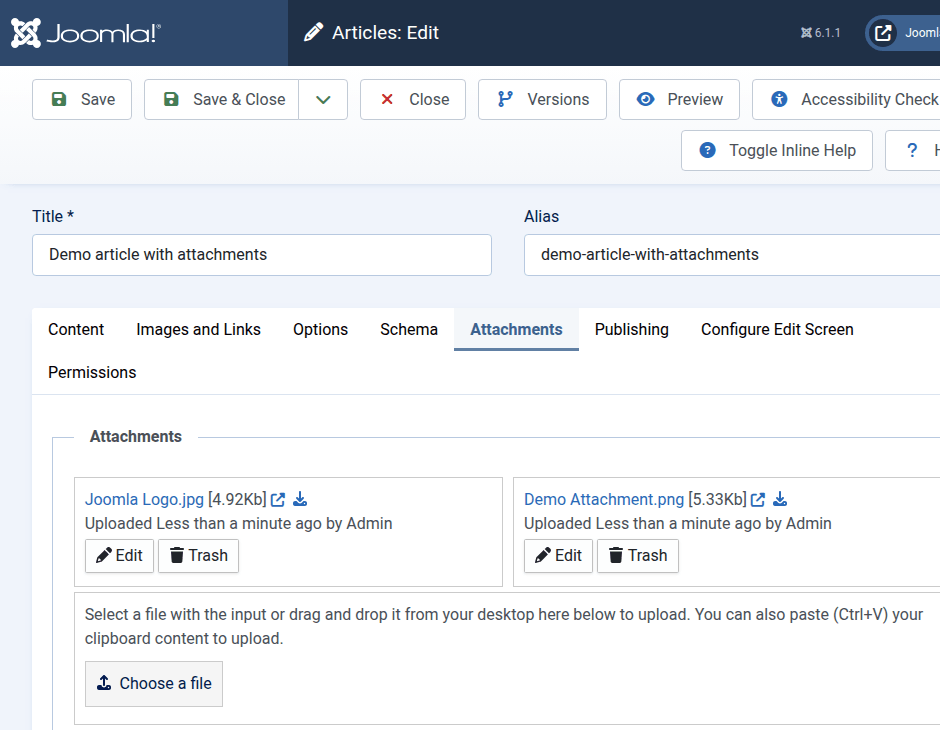
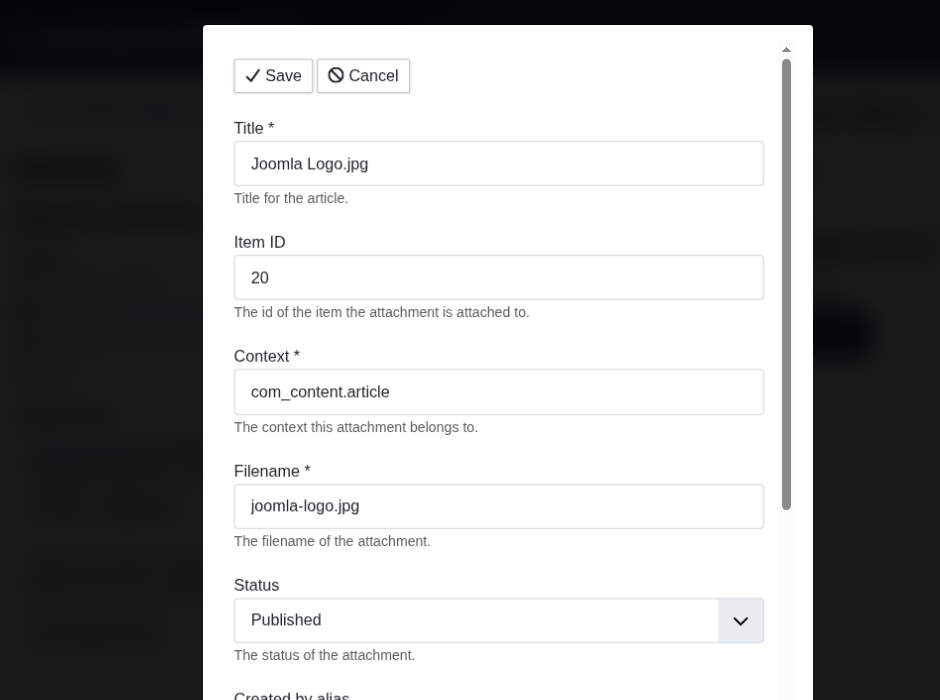
An attachment can be edited directly from the attachment list by clicking on the edit button. A form will upload where the individual attributes can be edited. It is also possible to upload a new attachment which replaces the existing one.

Comments (0)